HiDrive for Mac: folder checkboxes in the synchronisation settings do not respond to a click
On macOS 27, the folder checkboxes in the HiDrive app's synchronisation settings may not respond when you click them. This article explains the workaround.
Symptom
In the HiDrive app, under Settings → Synchronisation → Select folder to synchronize, clicking the checkbox next to a folder highlights the folder row but does not change the checkbox. The Synchronize all folders checkbox at the top of the dialog works normally.
Cause
macOS 27 changed the way mouse clicks are handled in certain app controls. This prevents the HiDrive app from registering a short click on these checkboxes. Your data and your existing synchronisation settings are not affected.
The three checkbox states
Each folder checkbox has three states:
| State | Appearance | Meaning |
| Not selected | Empty box | The folder and its contents are not synchronised to this Mac |
| Selected | Checkmark | The folder and all of its subfolders and files are synchronised |
| Partially selected | Dash (–) | Some items inside this folder are synchronised and others are not |
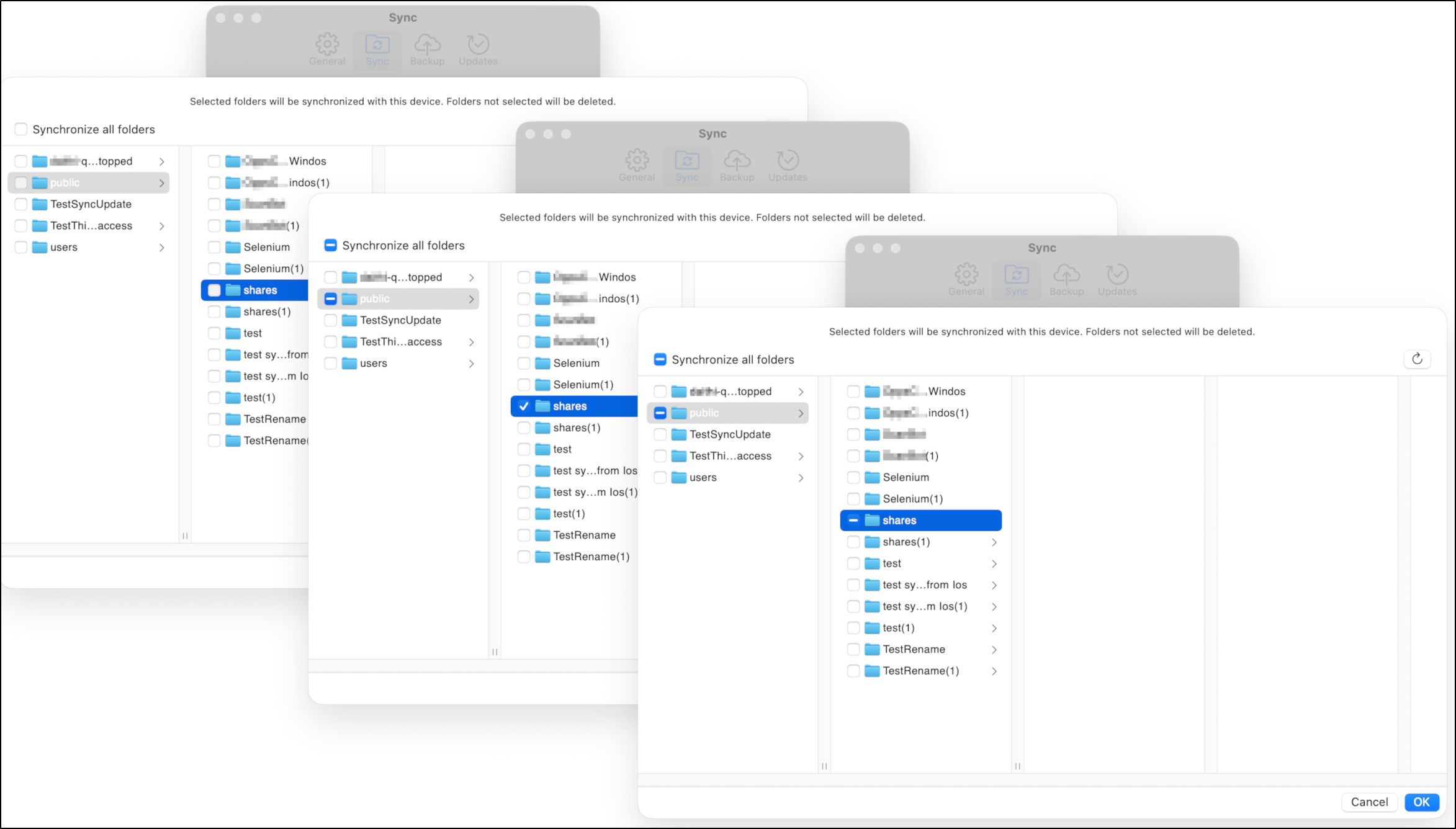
The dash appears automatically when you have selected only part of a folder's contents. Open the folder using the arrow on the right to see and change which items inside it are selected.
Workaround
Instead of clicking briefly, press and hold on the checkbox, then release. The state only changes when you release the mouse button — nothing happens while you are still holding it.
- Open the HiDrive app and go to Settings → Synchronisation.
- Click Select folder to synchronize.
- Position the pointer over the checkbox next to the folder you want to change.
- Press and hold the mouse button or trackpad. The checkbox will not change yet — this is expected.
- Keep holding for a moment, then release. The state now changes.
- If the state shown is not the one you want, press and hold again to move to the next state. Repeat until the correct state is shown.
- Repeat for each folder you want to change, then confirm with OK.
This works with both a mouse and a trackpad.
Additional notes
- The Synchronize all folders option is unaffected. If you want to synchronise everything, or nothing, you can continue to use this checkbox as normal.
- Reinstalling the app or installing an earlier version does not resolve this. Please use the workaround above.
- We are working on an update. This article will be revised once it is available.